Tutorials - UGC / Workshop
By Gramps, KarpPaul, and Lyaaaaaaaaaaaaaaa
A hot topic that comes up: Workshop / UGC. There are a lot of moving parts but our tutorial is based on Skillet's UGC Editor which covers creating, editing, and viewing Workshop items. While we don't yet have information on how to use these items, luckily some smart folks have provided information based on their experiences that we can also share!
Relevant GodotSteam classes and functions
- Friends class
- UGC class
- createItem()
- createQueryUserUGCRequest()
- getItemInstallInfo()
- getSubscribedItems()
- getQueryUGCResult()
- releaseQueryUGCRequest()
- sendQueryUGCRequest()
- setItemContent()
- setItemDescription()
- setItemMetadata()
- setItemPreview()
- setItemTags()
- setItemTitle()
- setItemUpdateLanguage()
- setItemVisibility()
- setReturnOnlyIDs()
- startItemUpdate()
- submitItemUpdate()
- User class
Note
You may want to double-check our Initialization tutorial to set up initialization and callbacks functionality if you haven't done so already.
Preparations
Before anything else, you'll want to read Valve's write-up on Workshop / UGC which will cover a lot of steps that aren't covered in this tutorial. Once you get through that, you should also read through Valve's write-up on the implementation of Workshop / UGC so you'll be ready to continue on.
As with our other tutorials, we will add some variables to our steamworks.gd global script for later use:
var is_new_item: bool = false
var published_file_id: int = 0
var query_handle: int = 0
var update_handle: int = 0
var workshop_app_id: int = 0
We are popping these in our global script because we will need them across a few different scenes. However, depending on how you are implementing Workshop, this may not apply to your layout. A bit about our variables here:
- is_new_item - Since our editing scene is used for newly created items and editing already existing ones, this will let us know if we have to query for details or not. We will cover this more in Newly Created vs Editing Items.
- published_file_id - The current item we are interacting with.
- query_handle - Used when querying items.
- update_handle - The handle for our item updates, whether it is a new or existing item.
- workshop_app_id - This may differ from your game's app ID if you are creating a separate Workshop tool.
Creating Items
When creating new items, we will be defaulting to the Community file type (shown below as Ready-To-Use) but there are quite a few other options you can use listed here. This particular file type is defined as "Normal Workshop item that can be subscribed to." While it is not shown here, our drop-down actually has all the available options.
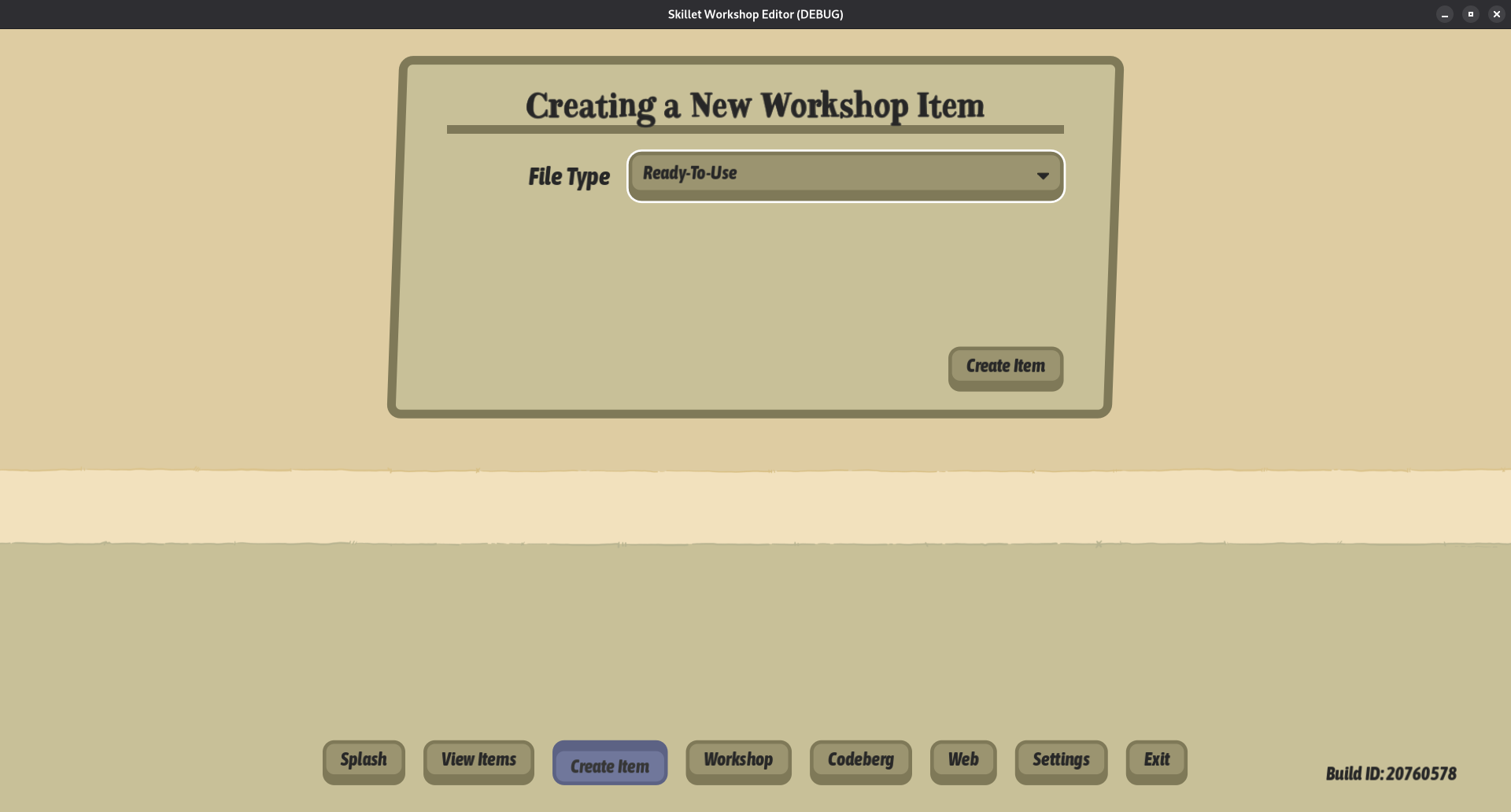
For our item creation scene, we will hook up the only signal we need, item_created, and a button that triggers the createItem Steam function like so:
var file_type: int = Steam.WORKSHOP_FILE_TYPE_COMMUNITY


func _ready() -> void:
    Steam.item_created.connect(_on_item_created)


func _on_create_item_pressed() -> void:
    print("Creating new Workshop item")
    Steam.createItem(Steamworks.workshop_app_id, file_type)
Again, the workshop_app_id will only differ from the game's app ID if you are using a separate app. Our callback should pretty much always succeed but, if not, there can be a bunch of reasons why. Upon success, if the user has not accepted the Workshop TOS, we'll have overlay direct them there.
func _on_item_created(result: int, new_file_id: int, need_to_accept_tos: bool) -> void:
    if result == Steam.RESULT_OK:
        # We don't want to block the process but still direct the player to accept the TOS
        if need_to_accept_tos:
            print("User needs to accept Workshop TOS")
            Steam.activateGameOverlayToWebPage("steam://url/CommunityFilePage/%s" % new_file_id)

        Steamworks.published_file_id = new_file_id

        # We will automatically subscribe to this item so it shows up in the View Items section
        Steam.subscribeItem(Steamworks.published_file_id)

        print("Workshop item %s created successfully." % Steamworks.published_file_id)
    else:
        print("Could not create a new Workshop item! %s" % result)
We'll store the published_file_id so we can actually update and edit the item we just created, since our editor does not directly open the editing form upon success. However, you could make yours directly switch to the editing scene for ease; which is on our to-do list for Skillet's UGC editor.
You will also notice we subscribe the user to the item they just created as this is not done automatically. On to editing our item!
Editing Items
The real meat of our editor is, well, editing items. This is where you'll probably run into the most issues as parts of this can be real picky.
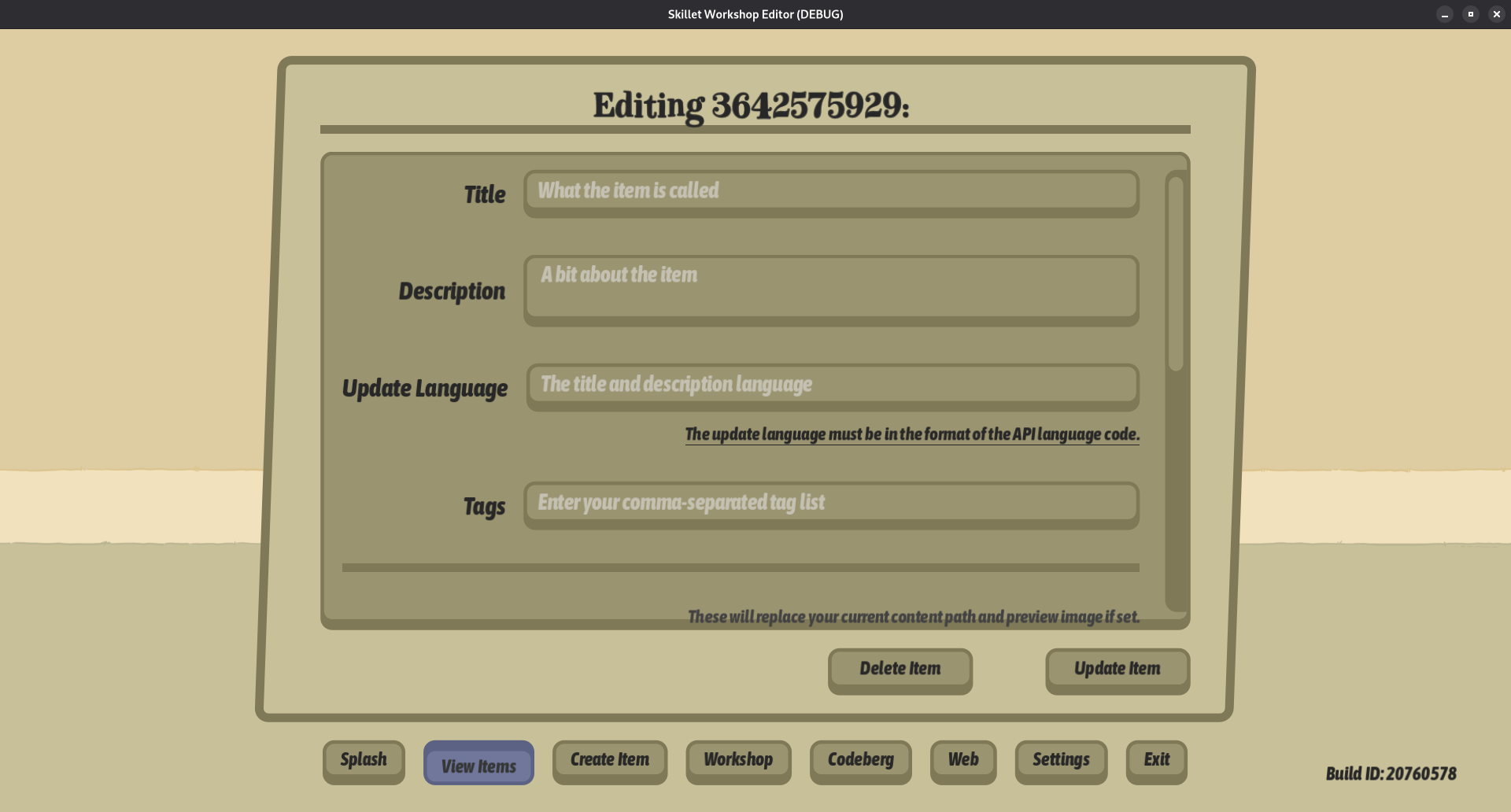
First we'll set up the buttons and signals we need for our editing scene:
@onready var button_delete: Button = %DeleteButton
@onready var button_update: Button = %UpdateButton


func _ready() -> void:
    button_delete.pressed.connect(_on_delete_pressed)
    button_update.pressed.connect(_on_update_pressed)

    Steam.item_updated.connect(_on_item_updated)
    Steam.item_deleted.connect(_on_item_deleted)


func _on_delete_pressed() -> void:
    print("Deleting Workshop item %s" % Steamworks.published_file_id)
    Steam.deleteItem(Steamworks.published_file_id)


func _on_item_deleted(this_result: int, this_file_id:int) -> void:
    if this_file_id != Steamworks.published_file_id:
        print("Trying to delete the wrong file ID: %s" % this_file_id)
        return

    if this_result != Steam.RESULT_OK:
        print("Failed to delete item %s: %s" % [Steamworks.published_file_id, this_result])
        return

    print("Successfully deleted item %s" % Steamworks.published_file_id)
    # Show either a modal or move back to the item viewing scene


func _on_item_updated(result: Steam.Result, needs_to_accept_tos: bool, file_id: int) -> void:
    if Steamworks.published_file_id != file_id:
        print("Got wrong file ID back that does not match %s: %s" % [Steamworks.published_file_id, file_id])
        return

    if needs_to_accept_tos:
        print("User needs to accept Workshop TOS")
        Steam.activateGameOverlayToWebPage("steam://url/CommunityFilePage/%s" % Steamworks.published_file_id)

    if result == Steam.RESULT_OK:
        print("Workshop item %s updated successfully." % Steamworks.published_file_id)
        # Show some confirmation it updated
    else:
        print("Could not update the Workshop item! %s" % get_result_type(result))
        # Show some confirmation it failed


func _on_update_pressed() -> void:
    print("Submitting item update to Steam")

    set_item_title()
    set_item_content()
    set_item_description()
    set_item_metadata()
    set_item_preview()
    set_item_tags()
    set_item_update_language()
    set_item_visibility()

    Steam.submitItemUpdate(Steamworks.update_handle, set_item_comment())
Our item deleting functions are pretty straight-forward but our updating item function calls each of our form's fields individually and sets them before submitting the update itself to Steam.
Item Details
Let's take a look at all these different details to update. Most of these will be using LineEdit or TextEdit nodes.
@onready var item_comment_lineedit: LineEdit = %ItemComment
@onready var item_content_lineedit: LineEdit = %ItemContent
@onready var item_description: TextEdit = %ItemDescription
@onready var item_metadata_lineedit: LineEdit = %ItemMetadata
@onready var item_preview_lineedit: LineEdit = %ItemPreview
@onready var item_tags_lineedit: LineEdit = %ItemTags
@onready var item_title_lineedit: LineEdit = %ItemTitle
@onready var item_update_language_lineedit: LineEdit = %ItemUpdateLanguage
@onready var item_visibility_dropdown: OptionButton = %ItemVisibility


func set_item_comment() -> String:
    return item_comment_lineedit.text


func set_item_content() -> void:
    if not item_content_lineedit.text.is_empty():
        if not Steam.setItemContent(Steamworks.update_handle, item_content_lineedit.text):
            print("Failed to set item content location")


func set_item_description() -> void:
    if not item_description.text.is_empty():
        if not Steam.setItemDescription(Steamworks.update_handle, item_description.text):
            print("Failed to set item description")


func set_item_metadata() -> void:
    if not item_metadata_lineedit.text.is_empty():
        if not Steam.setItemMetadata(Steamworks.update_handle, item_metadata_lineedit.text):
            print("Failed to set item metadata")


func set_item_preview() -> void:
    if not item_preview_lineedit.text.is_empty():
        if not Steam.setItemPreview(Steamworks.update_handle, item_preview_lineedit.text):
            print("Failed to set")


# Tag lists should be comma separated for this to work correctly
func set_item_tags() -> void:
    if not item_tags_lineedit.text.is_empty():
        var these_tags: Array = item_tags_lineedit.text.split(",")
        print("Setting %s item tags: %s" % [these_tags.size(), these_tags])
        if not Steam.setItemTags(Steamworks.update_handle, these_tags, true):
            print("Failed to set item tags")


func set_item_title() -> void:
    if not item_title_lineedit.text.is_empty():
        if not Steam.setItemTitle(Steamworks.update_handle, item_title_lineedit.text):
            print("Failed to set item title")


func set_item_update_language() -> void:
    if not item_update_language_lineedit.text.is_empty():
        if not Steam.setItemUpdateLanguage(Steamworks.update_handle, item_update_language_lineedit.text):
            print("Failed to set item update language")


func set_item_visibility() -> void:
    if item_visibility_dropdown.selected > -1:
        if not Steam.setItemVisibility(Steamworks.update_handle, item_visibility_dropdown.selected):
            print("Failed to set item visibility")
Most don't really need much explanation but we do want to go into detail about the item content and item preview fields. These will often be your pain points because they must be absolute paths and the item preview image must be under 1 MB in size. You may also run into permission errors and, if using containerized Steam or Godot versions in Flatpak or Snap, confusing responses from Steam about being unable to find your files.
When everything is filled out the way you want it, hit the update button to trigger the submitItemUpdate function call. Upon success, your Workshop item should now be ready to use by the community!
Before we move on to look at browsing / viewing items, let's talk a little bit about the different between freshly created items and editing already existing ones.
Newly Created vs Editing Items
Newly created items from our last step will, obviously, have no information to populate for our form but we will have to get that information for our already edited items. So we'll make some additions to our editing scene script.
Our reset_form function will clear the form, just in case, and starts the update process by calling startItemUpdate. If this is a newly created item with our is_new_item set to true, we'll ignore more data gathering. However, if this is an already edited item, we'll pull details using createQueryUGCDetailsRequest to get a new query handle, store it, then make the request with sendQueryUGCRequest.
func _ready() -> void:
    Steam.ugc_query_completed.connect(_on_ugc_query_completed)
    reset_form()


func reset_form() -> void:
    print("Resetting editing form")
    Steamworks.update_handle = Steam.startItemUpdate(Steamworks.workshop_app_id, Steamworks.published_file_id)

    title_label.text = "Editing %s: %s" % [Steamworks.published_file_id, item_title_lineedit.text]
    item_title_lineedit.text = ""
    item_description.text = ""
    item_visibility_dropdown.selected = 0
    item_tags_lineedit.text = ""
    item_content_lineedit.text = ""
    item_preview_lineedit.text = ""

    if not Steamworks.is_new_item:
        print("%s is not new so requesting UGC details" % Steamworks.published_file_id)
        Steamworks.query_handle = Steam.createQueryUGCDetailsRequest([Steamworks.published_file_id])

        if not Steam.setReturnMetadata(Steamworks.query_handle, true):
            print("Failed to set return only metadata")
        Steam.sendQueryUGCRequest(Steamworks.query_handle)

    Steamworks.is_new_item = false
Our sendQueryUGCRequest call will trigger a ugc_query_completed callback and fills in all the details:
func _on_ugc_query_completed(query_handle: int, result: int, _results_returned: int, _total_matching: int, _cached: bool, _next_cursor: String) -> void:
    if result == Steam.RESULT_OK:
        # This must be called if you set setReturnMetadata to true
        var this_item_metadata: String = Steam.getQueryUGCMetadata(query_handle, 0)
        var this_item_details: Dictionary = Steam.getQueryUGCResult(query_handle, 0)
        print("Updating data for published item %s" % this_item_details['file_id'])

        # Oddly, there is no way to get the language set when creating the item
        title_label.text = "Editing %s: %s" % [this_item_details['file_id'], this_item_details['title']]
        item_title_lineedit.text = this_item_details['title']
        item_description.text = this_item_details['description']
        item_visibility_dropdown.selected = this_item_details['visibility']
        item_tags_lineedit.text = this_item_details['tags']
        item_metadata_lineedit.text = this_item_metadata
    else:
        print("The query failed, result: %s" % result)

    Steam.releaseQueryUGCRequest(Steamworks.query_handle)
    Steamworks.query_handle = 0
After that, we'll want to release the query with releaseQueryUGCRequest. Now let's check out displaying Workshop items.
Viewing Items
For our tutorial we are only dealing with items that the local user has created but we'll talk about other types of item queries a bit later. For now, let's set up some variables for our viewing scene:
const UGCItemObject: Object = preload("res://src/entities/ugc_item.tscn")

@onready var button_refresh: Button = %Refresh
@onready var title_label: Label = %Title


func _ready() -> void:
    button_refresh.pressed.connect(_on_refresh_pressed)
    Steam.ugc_query_completed.connect(_on_ugc_query_completed)
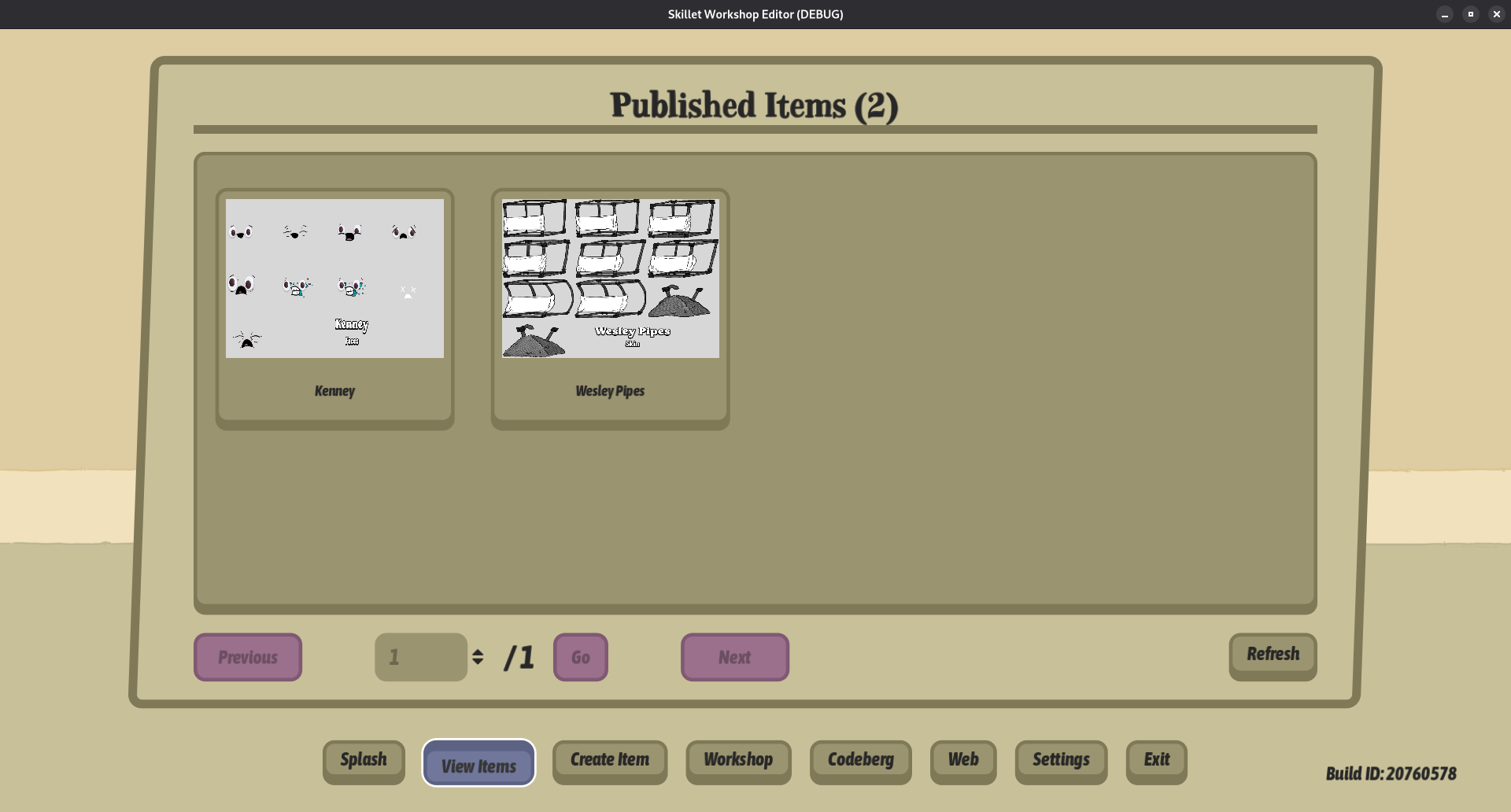
When our refresh button is pressed, we make a call to createQueryUserUGCRequest with the enum for published items - USER_UGC_LIST_PUBLISHED. However, if you want to browser all items or ones the user is subscribed to you can change the second argument to one of these enums.
func _on_refresh_items_pressed() -> void:
    update_subscribed_items()


func update_subscribed_items(this_page: int = 1) -> void:
    print("Updating player's subscribed items for page: %s" % this_page)
    # Clear our grid or list of previous items

    Steamworks.query_handle = Steam.createQueryUserUGCRequest(Steamworks.steam_id, Steam.USER_UGC_LIST_PUBLISHED, Steam.UGC_MATCHING_UGC_TYPE_ALL, Steam.USER_UGC_LIST_SORT_ORDER_CREATION_ORDER_DESC, Steamworks.app_id, Steamworks.workshop_app_id, this_page)
    Steam.sendQueryUGCRequest(Steamworks.query_handle)
As mentioned before, our app ID and Workshop app ID will be the same if you are accessing things from your game but they should be different if doing so from a separate editor.
The update_subscribed_items function will call sendQueryUGCRequest and should trigger our _on_ugc_query_completed callback.
func _on_ugc_query_completed(query_handle: int, result: int, results_returned: int, total_matching: int, _cached: bool, _next_cursor: String) -> void:
    if query_handle == Steamworks.query_handle:
        if result == Steam.RESULT_OK:
            title_label.text = "Published Items (%s)" % total_matching

            for this_item in range(0, results_returned):
                var this_item_details: Dictionary = Steam.getQueryUGCResult(Steamworks.query_handle, this_item)
                var this_item_preview: String = Steam.getQueryUGCPreviewURL(Steamworks.query_handle, this_item)

                if this_item_details.result != Steam.RESULT_OK:
                    print("Failed to retrieve UGC details: %s" % this_item_details.result)

                var this_ugc_item: Object = UGCItemObject.instantiate()
                item_grid.add_child(this_ugc_item)
                this_ugc_item.pressed.connect(_on_ugc_item_pressed.bind(this_item_details['file_id']))
                this_ugc_item.setup_button(this_item_preview, this_item_details['title'])
        else:
            print("The query failed, result: %s" % result)

    Steam.releaseQueryUGCRequest(Steamworks.query_handle)
    Steamworks.query_handle = 0
Upon success, we'll loop through the queried items and pull some details like the preview image, file ID, and title. We will instance a child scene to add this information.
Preview Items Scene
Our child scene will be a basic Button node with the following children:
- HTTPRequest
- TextureRect (our item preview image)
- Label (our item name)
We will then attach the following bits of code to it:
@onready var http_request_node: HTTPRequest = %HTTPRequest
@onready var image_texture_rect: TextureRect = %Image
@onready var title_label: Label = %Title


func _ready() -> void:
    http_request_node.request_completed.connect(_on_request_completed)


func get_image_from_steam_url(item_preview: String) -> void:
    print("Preview image uRL: %s" % item_preview)
    var request_error: Error = http_request_node.request(item_preview)
    if request_error != OK:
        print("Failed sending preview image request: %s" % request_error)


func _on_request_completed(result: int, _response_code: int, _headers: PackedStringArray, image_buffer: PackedByteArray):
    if result != HTTPRequest.RESULT_SUCCESS:
        print("Failed downloading preview image from Steam: %s" % result)
        return
    var preview_image: Image = Image.new()
    var load_error: Error = preview_image.load_png_from_buffer(image_buffer)
    if load_error != OK:
        print("Failed loading preview image: %s" % load_error)
        return
    image_texture_rect.texture = ImageTexture.create_from_image(preview_image)


func setup_button(this_item_preview: String, this_title: String) -> void:
    if not this_item_preview.is_empty():
        get_image_from_steam_url(this_item_preview)
    title_label.text = "Unknown" if this_title.is_empty() else this_title
Lastly, when you press one of these item buttons, it will trigger our _on_ugc_item_pressed function which will set this item as our global published_file_id and swap our scene back to the editing one:
func _on_ugc_item_pressed(this_file_id: int) -> void:
    print("Opening item %s" % this_file_id)
    Steamworks.published_file_id = this_file_id
    # Swap scenes back to our editing scene
And that's what we have so far for our Workshop / UGC tutorial. At some point we'll add some examples for using your Workshop items in-game. For now, you can check our some additional information on how to set up Workshop.
Additional Implementations
Uploading / Downloading In Workshop / UGC
KarpPaul of Forgotten Dream Games has given us this pretty great tutorial on uploading and downloading items in Workshop / UGC. Since he has written everything, with code examples, there isn't any reason to reiterate it here when you can just click the link and read it all yourself.
Using Items In Workshop / UGC
Lyaaaaaaaaaaaaaaa submitted some code showing how they use items in Workshop / UGC:
extends Node

class_name Steam_Workshop

signal query_request_success

var published_items  : Array
var steam = SteamAutoload.steam    # I don't use the `Steam` directly to avoid scripts errors in non-steam builds.

var _app_id        : int =  ProjectSettings.get_setting("global/steam_app_id")
var _query_handler : int
var _page_number   : int = 1
var _subscribed_items : Dictionary

func _init() -> void:
    steam.connect("ugc_query_completed", self, "_on_query_completed")

    for item in steam.getSubscribedItems():
        var info : Dictionary
        info = get_item_install_info(item)
        if info["ret"] == true:
            _subscribed_items[item] = info


static func open_tos() -> void:
    var steam = SteamAutoload.steam
    var tos_url = "https://steamcommunity.com/sharedfiles/workshoplegalagreement"
    steam.activateGameOverlayToWebPage(tos_url)


func get_item_install_info(p_item_id : int) -> Dictionary:
    var info : Dictionary
    info = steam.getItemInstallInfo(p_item_id)

    if info["ret"] == false:
        var warning = "Item " + String(p_item_id) + " isn't installed or has no content"
        # Here your code to log/display errors

    return info


func get_published_items(p_page : int = 1, p_only_ids : bool = false) -> void:
    var user_id : int = steam.getSteamID()
    var list    : int = steam.USER_UGC_LIST_PUBLISHED
    var type    : int = steam.WORKSHOP_FILE_TYPE_COMMUNITY
    var sort    : int = steam.USER_UGC_LIST_SORT_ORDER_CREATION_ORDER_DESC

    _query_handler = steam.createQueryUserUGCRequest(user_id,
                                                     list,
                                                     type,
                                                     sort,
                                                     _app_id,
                                                     _app_id,
                                                     p_page)
    steam.setReturnOnlyIDs(_query_handler, p_only_ids)
    steam.sendQueryUGCRequest(_query_handler)


func get_item_folder(p_item_id : int) -> String:
    return _subscribed_items[p_item_id]["folder"]


func fetch_query_result(p_number_results : int) -> void:
    var result : Dictionary
    for i in range(p_number_results):
        result = steam.getQueryUGCResult(_query_handler, i)
        published_items.append(result)

    steam.releaseQueryUGCRequest(_query_handler)


func _on_query_completed(p_query_handler    : int,
                         p_result           : int,
                         p_results_returned : int,
                         p_total_matching   : int,
                         p_cached           : bool) -> void:

    if p_result == steam.RESULT_OK:
        fetch_query_result(p_results_returned)
    else:
        var warning = "Couldn't get published items. Error: " + String(p_result)
        # Here your code to log/display errors

    if p_result == 50:
        _page_number ++ 1
        get_published_items(_page_number)

    elif p_result < 50:
        emit_signal("query_request_success",
                    p_results_returned,
                    _page_number)
Workshop Items
Following along with Lyaaaaaaaaaaaaaaa's example, here is a class for your Workshop / UGC items.
extends Node

class_name UGC_Item

signal item_created
signal item_updated
signal item_creation_failed
signal item_update_failed

var steam = SteamAutoload.steam # I don't use the `Steam` directly to avoid scripts errors in non-steam builds.

var _app_id  : int = ProjectSettings.get_setting("global/steam_app_id")
var _item_id : int
var _update_handler

func _init(p_item_id   : int = 0,
           p_file_type : int = steam.WORKSHOP_FILE_TYPE_COMMUNITY) -> void:

    steam.connect("item_created", self, "_on_item_created")
    steam.connect("item_updated", self, "_on_item_updated")

    if p_item_id == 0:
        steam.createItem(_app_id, p_file_type)
    else:
        _item_id = p_item_id
        start_update(p_item_id)


func start_update(p_item_id : int) -> void:
    _update_handler = steam.startItemUpdate(_app_id, p_item_id)


func update(p_update_description : String = "Initial commit") -> void:
    steam.submitItemUpdate(_update_handler, p_update_description)


func set_title(p_title : String) -> void:
    if steam.setItemTitle(_update_handler, p_title) == false:
        # Here your code to log/display errors


func set_description(p_description : String = "") -> void:
    if steam.setItemDescription(_update_handler, p_description) == false:
        # Here your code to log/display errors


func set_update_language(p_language : String) -> void:
    if steam.setItemUpdateLanguage(_update_handler, p_language) == false:
        # Here your code to log/display errors


func set_visibility(p_visibility : int = 2) -> void:
    if steam.setItemVisibility(_update_handler, p_visibility) == false:
        # Here your code to log/display errors


func set_tags(p_tags : Array = []) -> void:
    if steam.setItemTags(_update_handler, p_tags) == false:
        # Here your code to log/display errors


func set_content(p_content : String) -> void:
    if steam.setItemContent(_update_handler, p_content) == false:
        # Here your code to log/display errors


func set_preview(p_image_preview : String = "") -> void:
    if steam.setItemPreview(_update_handler, p_image_preview) == false:
        # Here your code to log/display errors


func set_metadata(p_metadata : String = "") -> void:
    if steam.setItemMetadata(_update_handler, p_metadata) == false:
        # Here your code to log/display errors


func get_id() -> int:
    return _item_id


func _on_item_created(p_result : int, p_file_id : int, p_accept_tos : bool) -> void:
    if p_result == steam.RESULT_OK:
        _item_id = p_file_id
        # Here your code to log/display success
        emit_signal("item_created", p_file_id)
    else:
        var error = "Failed creating workshop item. Error: " + String(p_result)
        # Here your code to log/display errors
        emit_signal("item_creation_failed", error)

    if p_accept_tos:
        Steam_Workshop.open_tos()


func _on_item_updated(p_result : int, p_accept_tos : bool) -> void:
    if p_result == steam.RESULT_OK:
        var item_url = "steam://url/CommunityFilePage/" + String(_item_id)
        # Here your code to log/display success
        steam.activateGameOverlayToWebPage(item_url)
        emit_signal("item_updated")
    else:
        var error = "Failed updated workshop item. Error: " + String(p_result)
        # Here your code to log/display errors
        emit_signal("item_update_failed", error)

    if p_accept_tos:
        Steam_Workshop.open_tos()
Weird Issues
KarpPaul had some information about getting "access is denied" from getQueryUGCResult:
Regarding the issue that I had with steamworks (Steam.getQueryUGCResult returns "access is denied" when the workshop is set visible to developers and customers). I talked to steam support and they were not able to reproduce the error. I checked the ipc log and indeed everything looks normal - no access denied results in steam logs. However, the error is still in the game. No idea why this happens and how, maybe I am doing smth wrong. I wonder if anybody else will encounter this.... anyway, it is not critical, so I just make my workshop visible to everyone and decide to ignore the issue for now.
Additional Resources
Example Project
You can see this tutorial in action with more in-depth information by checking out our Skillet Workshop / UGC Editor on Codeberg. There you will be able to view of the code used which can serve as a starting point for you to branch out from.