GodotSteamKit Tutorials - Chat
This tutorial will cover the basics of using the Steam Chat custom scene from the GodotSteamKit.
Usage
Once you have the GodotSteamKit installed, you can add the custom scene to your project manually or instantiate it. By default, it uses the supplied GodotSteam theme but you will probably want to tailor the appearance to match your game.
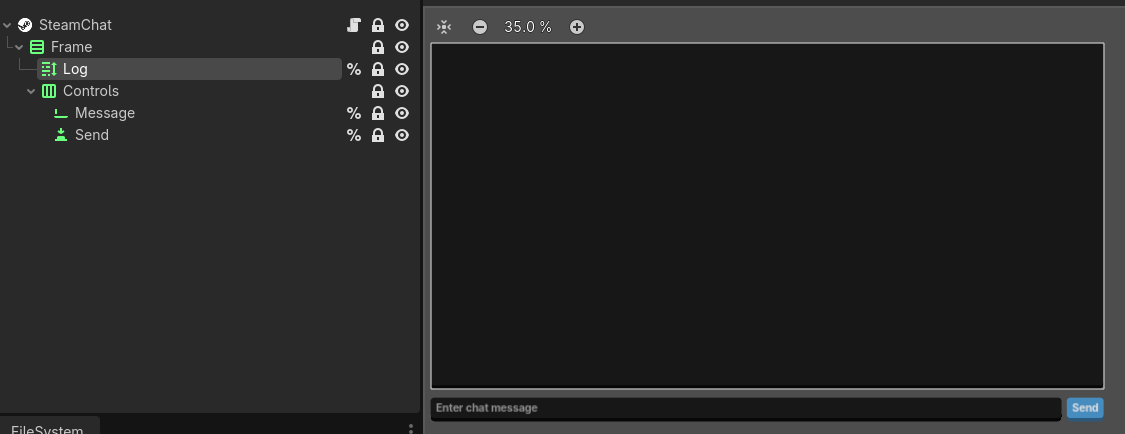
The Steam Chat scene should work out of the box without having to hook anything up. It was originally designed to be paired with the Steam Lobbies custom node but can be used standalone in anywhere; like in-game for chatting while playing.
Requires a lobby ID
This scene does require you to be in an active lobby to function. If the chat is to be used elsewhere outside of a lobby scene, you must leave your lobby intact; though it may be closed to new players.
When someone joins or leaves the chat, the scene will emit a update_lobby_member_list signal intended for the Steam Lobby custom scene to use. However, it can be used elsewhere to inform the game that the list of players has changed.
Kicking Players
The Steam Chat scene uses a kicking process similar to Valve's Spacewar example. The host passes a kick messages /kick <kicked Steam ID> which gets processed as a command. This causes the user to leave the lobby; however, you may want to expand on this functionality by disconnecting any networking connections you have set up.
Chat Commands
The scene has a _process_chat_commands function starting on line 33 for processing any commands sent through chat; currently only the kicking command is checked for. You can add new functionality here or expand upon the existing kicking command.
Signals
update_lobby_member_list
This signal will emit every time a user joins or leaves the chat. This is meant to be connected to the Steam Lobby scene but can be used anywhere to inform the game of a lobby change.