Tutorials - Lobbies
One of the more requested tutorials is multiplayer lobbies and P2P networking through Steam; this tutorial specifically covers the lobby portion and any of our networking tutorials should cover the other half. This is somewhat based on the GodotSteamKit lobby starter kit.
I'd also like to suggest you check out the Additional Resources section of this tutorial before continuing on.
Relevant GodotSteam classes and functions
- Matchmaking class
- addRequestLobbyListFilterSlotsAvailable()
- addRequestLobbyListNearValueFilter()
- addRequestLobbyListNumericalFilter()
- addRequestLobbyListResultCountFilter()
- addRequestLobbyListStringFilter()
- createLobby()
- getLobbyData()
- getLobbyMemberByIndex()
- getNumLobbyMembers()
- joinLobby()
- leaveLobby()
- requestLobbyList()
- sendLobbyChatMsg()
- setLobbyData()
- setLobbyJoinable()
- Friends class
Note
You may want to double-check our Initialization tutorial to set up initialization and callbacks functionality if you haven't done so already.
Preparations
We will want to keep track of our lobby ID if we keep the lobby going during matches / games. This can be a good way of using the lobby's chat system and also keeping track of when players join or leave mid-game. You can set the lobby to prevent people from joining after the match / game starts if you want too; which we will cover in the Modifying Lobbies section. In our steamworks.gd file (or whatever global Steam file you are using), you will want to simply add a variable to track it:
var lobby_id: int = 0

# Used to track a lobby ID from Steam invites or joining via Friends List
var invite_lobby_id: int = 0
The invite_lobby_id is optional but helps with other methods of joining lobbies as noted above.
If you plan on closing the lobby after the match / game starts, then this lobby_id can actually just be kept in your lobby manager scene's script as it will not be needed anywhere else. However, you will still probably want to keep the invite_lobby_id globally.
Lobby Manager
For this tutorial, we will want to break this system up into three scenes: host, lobby list / join, and the lobby itself. These are best controlled by a lobby manager scene so the player can switch between them and also helps with player's joining from a Steam invite without the game already running.
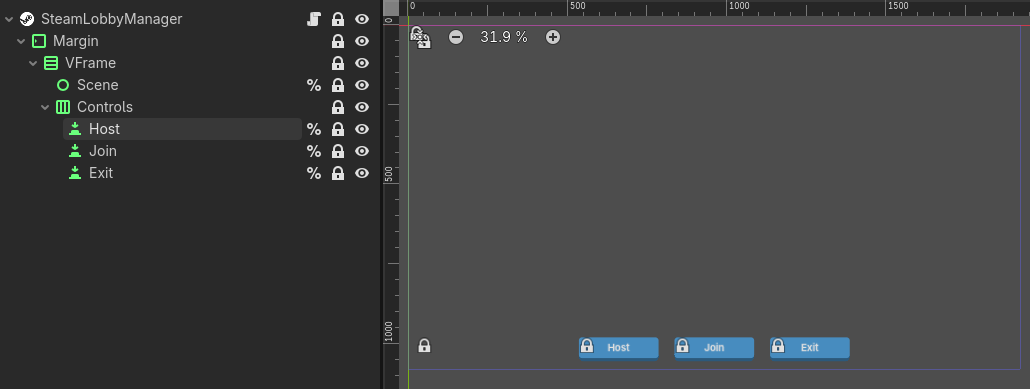
We will hook up the lobby_joined signal here as this will swap our host or join scene to the actual lobby scene when a lobby is created or selected from our lobby list.
func _ready() -> void:
    Steam.lobby_joined.connect("_on_lobby_joined")
We will come back to this in our Into The Lobby section.
Hosting A Lobby
First we will set up our lobby host scene. Here you see we give the host options on maximum number of players, the lobby visibility, and setting different lobby data "tags" so players searching for lobbies can filter for them. This last one is more useful if you are testing on app ID 480 since there are tons of other test and junk lobbies.
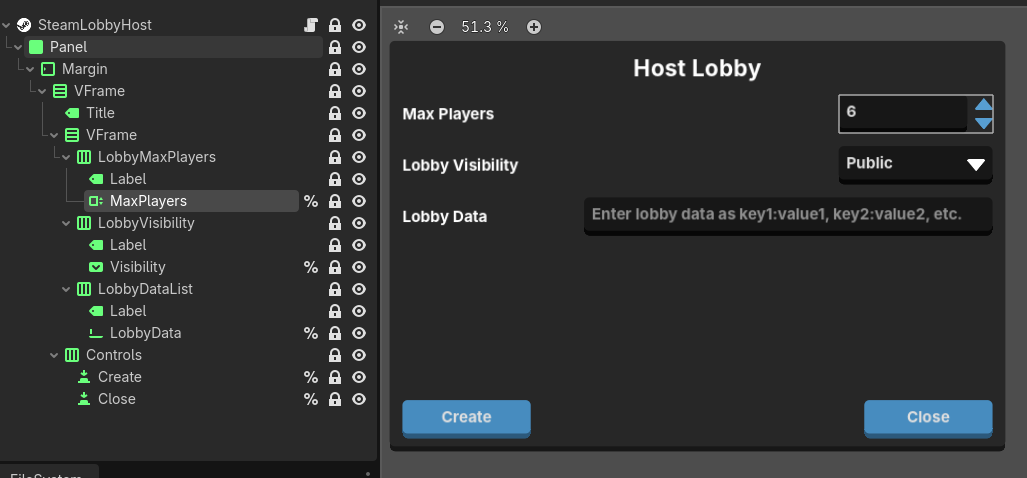
Before we get into that, we will connect the only Steam signal / callback we need for hosting and make some shortcuts for our settings fields:
@onready var create: Button = %Create
@onready var lobby_data: LineEdit = %LobbyData
@onready var max_players: SpinBox = %MaxPlayers
@onready var visibility: OptionButton = %Visibility


func _ready() -> void:
    create.pressed.connect(_on_create_pressed)
    Steam.lobby_created.connect(_on_lobby_created)
Before putting together our _on_create_pressed and _on_lobby_created functions, we will sort out the three host settings that lead us there.
Maximum Players
The maximum players is just a SpinBox we will name MaxPlayers. The maximum number of players per lobby is 250 so you may want to cap this appropriately. The node does not need to be connected to anything since we will grab the value during lobby creation.
Lobby Visibility
Our lobby visibility is an OptionButton that will have four available options: private, friends only, public, and invisible. You can read more about what those do in the Steam LobbyType enums section. Much like our maximum players value, we will get it when we actually create the lobby.
Lobby Data
The lobby data is just a LineEdit that must contain a common-separate list of key:value pairs which our code will translate. And, you guessed it, we will just get these later on.
This data can be queried at any point and used to store all manner of information. As mentioned at the beginning of this section, you can use this to set a search term for testing when using app ID 480 which will often be flooded with lots of other lobbies that are not yours. For example, you could set the tag as Game:My Cool Game and then users can search for that key:value pair specifically to return only your lobby in the lobby list.
Creating The Lobby
Now we will take all those options and write our function that is triggered by the Create button from earlier:
func _on_create_pressed() -> void:
    var lobby_type: Steam.LobbyType = visibility.selected as Steam.LobbyType
    Steam.createLobby(lobby_type, int(max_players.value))
We will use the selected property from our OptionButton and cast it as a Steam.LobbyType then pass that and the maximum players value, cast as an integer, to our createLobby() function. This in turn will trigger our lobby_created callback:
func _on_lobby_created(connect_status: Steam.Result, lobby_id: int) -> void:
    if connect_status == Steam.Result.RESULT_OK:
        # Set the lobby ID in our global script (if using one)
        print("Successfully created lobby %s" % lobby_id)
        Steamworks.lobby_id = lobby_id

        # Set the lobby name for displaying in searches, the lobby scene, etc.
        if not Steam.setLobbyData(Steamworks.lobby_id, "lobby_name", "My Cool Lobby"):
            printerr("Failed to set lobby name")

        # We will grab and set all lobby data tags
        # These must have been both comma-separated and in key:value pairs
        var data_sets: PackedStringArray = lobby_data.text.split(",", false)
        for this_data in data_sets:
            var data_key_value: PackedStringArray = this_data.split(":", false, 1)
            if data_key_value.size() == 2:
                if not Steam.setLobbyData(Steamworks.lobby_id, data_key_value[0], data_key_value[1]):
                    printerr("Failed to set lobby %s data [%s : %s]" % [Steamworks.lobby_id, data_key_value[0], data_key_value[1]])

    # Our lobby creation failed
    else:
        printerr("Failed to create a lobby: %s" % connect_status)
A second Steam callback should trigger if the lobby is successfully created, which would be lobby_joined; meaning the lobby is created and the host successfully joined it.
Obviously, you can set up whatever naming scheme you want for lobbies above. I usually name it after the host and append some kind of randomized noun like: lobby, game, etc.
Joining Lobbies
Now that we can create lobbies, it is time to query and pull a list of lobbies so we can join one. As you can see below, we have a panel with two main buttons: filters and refresh.
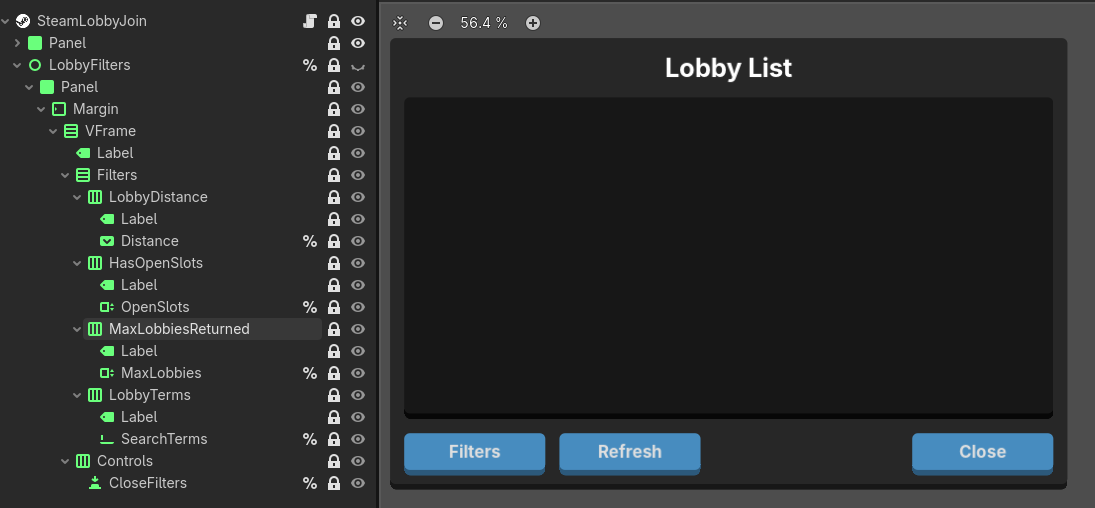
In our script we will attach some signals and buttons used for for refreshing the list of lobbies, setting filters to get the lobbies we want, and joining one in particular:
# A scene for displaying and joining a returned lobby.  The location will vary on your setup.
const LOBBY_ENTRY = preload("")

@onready var _distance: OptionButton = %Distance
@onready var _filters: Button = %Filters
@onready var _lobby_filters: Control = %LobbyFilters
@onready var _max_lobbies: SpinBox = %MaxLobbies
@onready var _open_slots: SpinBox = %OpenSlots
@onready var _refresh: Button = %Refresh
@onready var _search_terms: LineEdit = %SearchTerms


func _ready() -> void:
    _close_filters.pressed.connect(_on_close_filters_pressed)
    _filters.pressed.connect(_on_filters_pressed)
    _refresh.pressed.connect(_on_refresh_pressed)
    Steam.lobby_match_list.connect(_on_lobby_match_list)
Search Filters
Right now, nothing will show up until we press Refresh but we should set some filters first. Clicking on our Filters button will bring up the below panel where we can toggle: search distance, open player slots, max lobbies returned, and search terms which should link to our lobby data tags from our earlier hosting section.
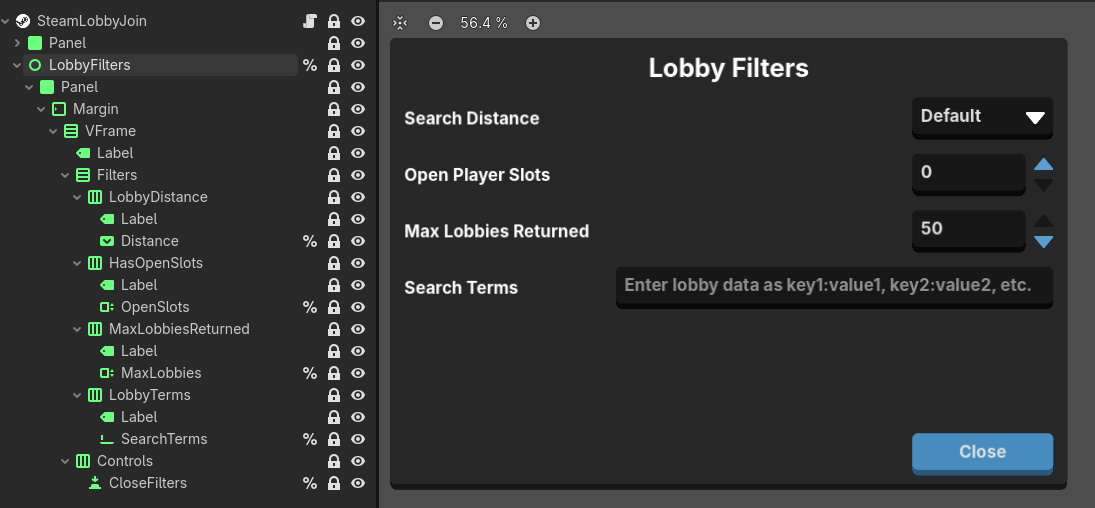
Much like our host settings, these fields have no connected signals and get queries when we press Refresh.
Search Distance
This will effect how far from us to pull available lobbies; the options are the Steam lobby distance filter enums: close, default, far, and worldwide.
Open Player Slots
This will look for lobbies with the specified amount of open slots available, in case you are looking for space for you and some friends.
Max Lobbies Returned
The current maximum is 50 lobbies but you can narrow that down with this option.
Search Terms
This is the matching side of our hosts lobby data tags from the previous section. Much like that one, this must be a comma-separated list of key:value pairs. Best for finding specific lobbies in a sea of possibilities.
Related Signals
Just so we do not forget them, our button signals _on_close_filters_pressed() and _on_filters_pressed() literally just control the visbility of our filters panel:
func _on_close_filters_pressed() -> void:
    _lobby_filters.visible = false


func _on_filters_pressed() -> void:
    _lobby_filters.visible = true
They could probably also just be merged into one function with a boolean toggle.
Refresh The List
Now that we have some filters set, we can press the Refresh button and get some results. Below you have our _on_refresh_pressed() function which also calls a _add_request_lobby_filters() function to process all our search options:
func _on_refresh_pressed() -> void:
    _add_request_lobby_filters()
    Steam.requestLobbyList()


func _add_request_lobby_filters() -> void:
    Steam.addRequestLobbyListDistanceFilter(_distance.selected as Steam.LobbyDistanceFilter)
    Steam.addRequestLobbyListFilterSlotsAvailable(_open_slots.value)
    Steam.addRequestLobbyListResultCountFilter(_max_lobbies.value)

    var these_terms: PackedStringArray = _search_terms.text.split(",", false)
    if these_terms.size() > 0:
        for this_term in these_terms:
            var data_key_value: PackedStringArray = this_term.split(":", false, 1)
            if data_key_value.size() == 2:
                if data_key_value[0].length() > Steam.MAX_LOBBY_KEY_LENGTH:
                    printerr("Invalid term passed, too long: %s" % this_term)
                    return
                Steam.addRequestLobbyListStringFilter(data_key_value[0], data_key_value[1], Steam.LOBBY_COMPARISON_EQUAL)
As you can see, it queries each of our fields and applies the values to the right Steam filters. There are two extra filters we do not use but you may find handy in your game:
After all that is processed our call to Steam's requestLobbyList() function will get us a list of lobbies by way of a lobby_match_list callback which triggers our _on_lobby_match_list() function:
func _on_lobby_match_list(these_lobbies: Array) -> void:
    if these_lobbies.size() == 0:
        print("No lobbies were found")
        return

    for this_lobby in these_lobbies:
        var lobby_object := LOBBY_ENTRY.instantiate()
        lobby_object.name = "Lobby%s" % this_lobby
        lobby_object.set_lobby_id(this_lobby)
        lobby_object.joining_lobby.connect(_on_joining_lobby)
        _lobby_list.call_deferred("add_child", lobby_object)
This function will instantiate our LOBBY_ENTRY scene and add it to our LobbyList VBoxContainer for each lobby. You will notice it passes the lobby ID to it as well which we use to get more data and joining said lobby.
Lobby Entries
Each lobby in our now-refreshed list is just a tiny instanced scene as you can see below. Pretty much just a label and button.

As mentioned in the section above, the only data passed to this scene is the lobby ID which we use to get the lobby's name we set in the hosting section and use for the join signal we pass when the player clicks it.
signal joining_lobby

var lobby_id: int = 0 : set = set_lobby_id
var lobby_name: String = "" : set = set_lobby_name

@onready var join: Button = %Join
@onready var name_label: Label = %Name


func _ready() -> void:
    _connect_signals()


#region Signals
func _connect_signals() -> void:
    join.pressed.connect(_on_pressed)


func _on_pressed() -> void:
    joining_lobby.emit(lobby_id)


# The setter for lobby ID which attempts to get the lobby name when set.
func set_lobby_id(new_lobby_id: int) -> void:
    lobby_id = new_lobby_id
    lobby_name = Steam.getLobbyData(lobby_id, "lobby_name")


# The setter for lobby name which will default to just the lobby ID if no valid
# name is passed to it.
func set_lobby_name(new_name: String) -> void:
    lobby_name = new_name
    if not is_node_ready(): await ready
    name_label.text = "Lobby %s" % lobby_id if lobby_name.is_empty() else lobby_name
#endregion
Our tiny script will grab the lobby's name with getLobbyData() and then display it. You can change that to be whatever fits your use-case.
Clicking the Join button on any of these instanced lobby scenes will now trigger our _on_joining_lobby() function back in our lobby list scene:
func _on_joining_lobby(lobby_id: int) -> void:
    print("Attempting to join lobby %s from the lobby list" % lobby_id)
    Steam.joinLobby(lobby_id)
We should then receive a lobby_joined callback in our lobby manager scene and finally move on to the lobby itself. First, we will talk about two other methods for joining lobbies.
Join Without The Lobby List
There are situations where the player will join a lobby without selecting one from the lobby list: accepting a Steam invite or joining a friend from the friends list, with or without the game running.
From Invite With Game Running
If the player is already in-game and accepts a Steam invite or right-clicks on a friend in their friends list then selects Join Game or Join Lobby from there, it will trigger the join_requested callback. This function will handle that:
func _ready() -> void:
    Steam.join_requested.connect(_on_lobby_join_requested)


func _on_lobby_join_requested(lobby_id: int, friend_id: int) -> void:
    # Get name of the friend who invited the player or who they joined via the friends list
    var friend_joining: String = Steam.getFriendPersonaName(friend_id)

    print("Joining lobby with..." % friend_joining)

    Steam.joinLobby(lobby_id)

    # Alternatively, change scenes to the lobby manager and set this lobby ID in our global
    # script and remove the above call to Steam.joinLobby()
    Steamworks.invite_lobby_id = lobby_id
Since this can happen at any time, this should probably be in a global script like our steamworks.gd or some networking script.
From Invite Without Game Running
If a player does not have the game running and accepts a Steam invite or joins a lobby by right-clicking on a friend's name then selecting Join Game or Join Lobby, Steam will launch the game with an additional command line attached which will look something like: +connect_lobby <Steam Lobby ID>. So we will want to check for this when the game boots up.
Depending on how your game starts, you will want to add this check_command_line() function in so it triggers after all the important start-up processes but before your menu scene since you will actually want to direct the player to your lobby scene itself.
func check_command_line() -> void:
    var command_line_args: Array = OS.get_cmdline_args()
    if these_arguments.size() == 0:
        return

    print("Command line arguments: %s" % [command_line_args])
    if these_arguments[0] != "+connect_lobby":
        return

    if int(these_arguments[1]) > 0:
        Steam.joinLobby(int(these_arguments[1]))

        # Alternatively, change scenes to the lobby manager and set this lobby ID in our global
        # script and remove the above call to Steam.joinLobby()
        Steamworks.invite_lobby_id = lobby_id
Getting To The Lobby
In both cases above, you will want to direct the player to your lobby manager as it has the function for the lobby_joined callback we will get from calling joinLobby. This could actually be handled a few different ways but, for this tutorial, we will add a bit to our global script and lobby manager script.
Replace the joinLobby calls in _on_lobby_join_requested and check_command_line with a scene change to the lobby manager after passing the lobby ID of the invite to our steamworks.gd global to store it. Then we can have the lobby manager check for this ID after it loads and just join it:
# Add this variable to our global script to use in the lobby manager
var invite_lobby_id: int = 0


# Add this to our lobby manager script
func _ready() -> void:
    if Steamworks.invite_lobby_id > 0:
        Steam.joinLobby(Steamworks.invite_lobby_id)
        # Make sure to reset this lobby ID
        Steamworks.invite_lobby_id = 0
Alternatively, you can set the appropriate scene name in your Steamworks launch options in the Steamworks back-end. You would want to add the full scene path (res://your-lobby-manager-scene.tscn) on the Arguments line in your launch option. However, this only works when we join while not having the game running. Big thanks to Antokolos for providing this example.
Now we should be able to join lobbies from any available method.
Into The Lobby
Regardless of which option to join is used, back in our lobby manager scene we will receive a lobby_joined callback from Steam. This will trigger our _on_lobby_joined() function:
func _on_lobby_joined(lobby_id: int, _permissions: int, _locked: int, response: Steam.ChatRoomEnterResponse) -> void:
    if response == Steam.ChatRoomEnterResponse.CHAT_ROOM_ENTER_RESPONSE_SUCCESS:
        print("Lobby %s joined successfully" % lobby_id)
        # Passed to our Steam global or if not needing to store the lobby ID, just saved locally in this script
        # _lobby_id = lobby_id
        Steamworks.lobby_id = lobby_id

        # Swap to the lobby scene here

    else:
        match response:
            Steam.ChatRoomEnterResponse.CHAT_ROOM_ENTER_RESPONSE_DOESNT_EXIST:
                printerr("Failed joining lobby %s, this lobby no longer exists.")
            Steam.ChatRoomEnterResponse.CHAT_ROOM_ENTER_RESPONSE_NOT_ALLOWED:
                printerr("Failed joining lobby %s, you don't have permission to join this Lobbies.")
            Steam.ChatRoomEnterResponse.CHAT_ROOM_ENTER_RESPONSE_FULL:
                printerr("Failed joining lobby %s, the lobby is now full.")
            Steam.ChatRoomEnterResponse.CHAT_ROOM_ENTER_RESPONSE_ERROR:
                printerr("Failed joining lobby %s, something unexpected happened!")
            Steam.ChatRoomEnterResponse.CHAT_ROOM_ENTER_RESPONSE_BANNED:
                printerr("Failed joining lobby %s, you are banned from this lobby.")
            Steam.ChatRoomEnterResponse.CHAT_ROOM_ENTER_RESPONSE_LIMITED:
                printerr("Failed joining lobby %s, you cannot join due to having a limited account.")
            Steam.ChatRoomEnterResponse.CHAT_ROOM_ENTER_RESPONSE_CLAN_DISABLED:
                printerr("Failed joining lobby %s, this lobby is locked or disabled.")
            Steam.ChatRoomEnterResponse.CHAT_ROOM_ENTER_RESPONSE_COMMUNITY_BAN:
                printerr("Failed joining lobby %s, this lobby is community locked.")
            Steam.ChatRoomEnterResponse.CHAT_ROOM_ENTER_RESPONSE_MEMBER_BLOCKED_YOU:
                printerr("Failed joining lobby %s, a user in the lobby has blocked you from joining.")
            Steam.ChatRoomEnterResponse.CHAT_ROOM_ENTER_RESPONSE_YOU_BLOCKED_MEMBER:
                printerr("Failed joining lobby %s, a user you have blocked is in the lobby.")
            Steam.ChatRoomEnterResponse.CHAT_ROOM_ENTER_RESPONSE_RATE_LIMIT_EXCEEDED:
                printerr("Failed joining lobby %s, you have exceeded the rate limit.")
For a more clear explanation of these chat room responses, check out the enums listings in the Main class.
On success, we will now move to the lobby scene itself as well as setting up any networking connections. This will vary if depending on what options you want to use: Classic Networking, Networking Messages, Networking Sockets, or MultiplayerPeer.
If the join attempt fails for some reason, it is best to print the error and move the player back to the lobby list scene; you could also just give them the option to host or join a lobby.
The Lobby
Finally we get to our actual lobby scene. From here we list all our current lobby members, have a chat log for messaging while we wait, etc.
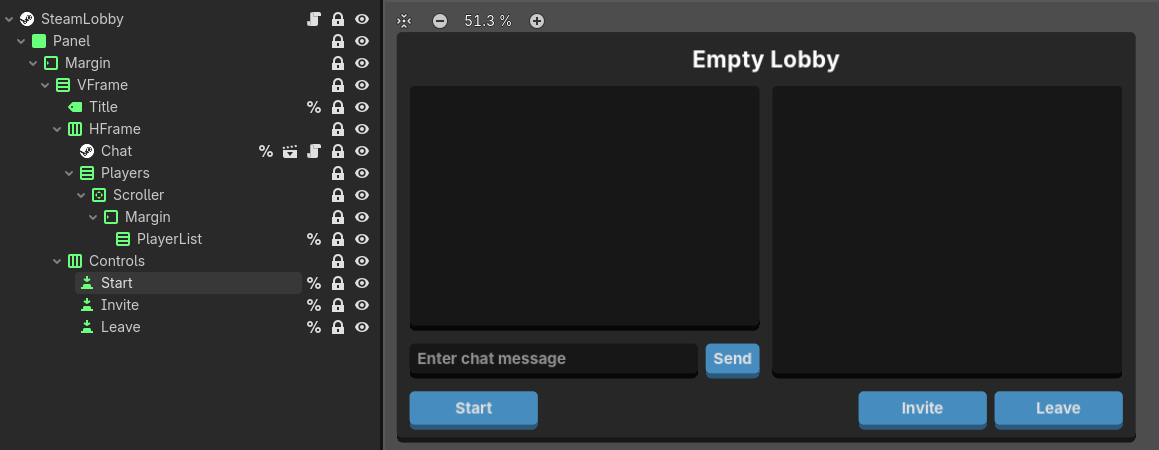
We will set up some constants, node shortcuts, and signals to start:
# A custom scene for the lobby  player.
const LOBBY_PLAYER = preload()

@onready var _chat: Control = %Chat
@onready var _invite: Button = %Invite
@onready var _leave: Button = %Leave
@onready var _player_list: VBoxContainer = %PlayerList
@onready var _start: Button = %Start
@onready var _title: Label = %Title


func _ready() -> void:
    # Just in case
    if Steamworks.lobby_id == 0:
        printerr("You are not in a lobby currently")
        # We may also want to swap back to our lobby list scene or just give the player
        # options to host or join a lobby
        return
    _get_lobby_name()
    _get_lobby_members()

    _chat.close_panel.connect(_on_leave_pressed)
    _invite.pressed.connect(_on_invite_pressed)
    _leave.pressed.connect(_on_leave_pressed)
    _start.pressed.connect(_on_start_pressed)

    Steam.lobby_chat_update.connect("_on_lobby_chat_update")
    Steam.lobby_data_update.connect("_on_lobby_data_update")
In our _ready() function we will check to make sure there is an actual lobby to be in and, if not, move the player back to the lobby list or just give them the options to host or join a lobby instead. Otherwise, we will set up the lobby's title and the list of current members with our _get_lobby_name() and _get_lobby_members() functions:
func _get_lobby_members() -> void:
    print("Getting lobby members for lobby %s" % Steamworks.lobby_id)
    for this_player in _player_list.get_children():
        this_player.visible = false
        this_player.queue_free()

    var num_lobby_members: int = Steam.getNumLobbyMembers(Steamworks.lobby_id)
    for this_player in range(0, num_lobby_members):
        var player_object := LOBBY_PLAYER.instantiate()
        player_object.steam_id = Steam.getLobbyMemberByIndex(Steamworks.lobby_id, this_player)
        _player_list.call_deferred("add_child", player_object)


func _get_lobby_name() -> void:
    var lobby_name: String = Steam.getLobbyData(Steamworks.lobby_id, "lobby_name")
    _title.text = lobby_name
The _get_lobby_name() function is pretty simple, it just uses getLobbyData() to pull the name we set during in the Lobby Host section from lobby data.
The _get_lobby_members() is a little more involved. Each time we update the list, we remove all existing member objects then instantiate a whole new batch.
Lobby Player
Our LOBBY_PLAYER scene is just a simple scene that contains an avatar and a bunch of buttons.
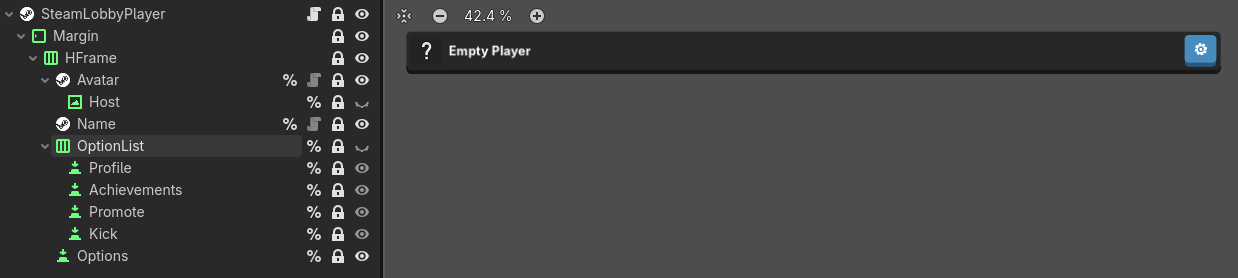
When it is instantiated, we pass the user's Steam ID to it which will then grab their avatar and username via our GodotSteamKit custom nodes. However, you can duplicate this by checking out our Avatar tutorial to see how to retrieve and display those; then calling getFriendPersonaName() for the username and passing it to our name label.
Other than that, we have a few buttons to do things like check out the user's profile, list of achievements for this game, promote them to host, or kick them from the lobby if you are the host:
var steam_id: int = 0 :
    set = set_steam_id

@onready var _achievements: Button = %Achievements
@onready var _avatar: SteamAvatarRect = %Avatar
@onready var _host: TextureRect = %Host
@onready var _kick: Button = %Kick
@onready var _options: Button = %Options
@onready var _options_list: HBoxContainer = %OptionList
@onready var _profile: Button = %Profile
@onready var _promote: Button = %Promote
@onready var _username: SteamUsername = %Name


func _ready() -> void:
    _achievements.pressed.connect(_on_achievements_pressed)
    _kick.pressed.connect(_on_kick_pressed)
    _options.toggled.connect(_on_options_toggled)
    _profile.pressed.connect(_on_profile_pressed)
    _promote.pressed.connect(_on_promote_pressed)

    _set_defaults()


func _set_defaults() -> void:
    print("Steam IDs: %s (instance) / %s (local)" % [steam_id, Steamworks.steam_id])
    # This little icon is visible for the host player
    _host.visible = is_lobby_host(steam_id)
    # These buttons should not be visible if you are not the host
    _kick.visible = is_lobby_host() and steam_id != Steamworks.steam_id
    _promote.visible = is_lobby_host() and steam_id != Steamworks.steam_id


# Set the player's Steam ID.  This will in turn set the avatar and username for this player if using
# GodotSteamKit custom nodes; they should also automatically update with any changes.
func set_steam_id(new_id: int) -> void:
    steam_id = new_id

    # If not using GodotSteamKit's nodes, you will want to replace the following with code to fetch
    # and display the avtar and a call to getFriendPersonaName to display the username.
    if not is_node_ready(): await ready
    _avatar.steam_id = steam_id
    _username.steam_id = steam_id

    _set_defaults()


func _on_achievements_pressed() -> void:
    Steam.activateGameOverlayToUser("achievements", steam_id)


func _on_kick_pressed() -> void:
    if is_lobby_host() and steam_id != Steamworks.steam_id:
        print("Sending kick command for %s" % steam_id)
        if not Steam.sendLobbyChatMsg(Steamworks.lobby_id, "/kick %s" % steam_id):
            printerr("Failed to send kick command for %s" % steam_id)


func _on_add_friend_pressed() -> void:
    Steam.activateGameOverlayToUser("friendadd", steam_id)


func _on_options_toggled(show_options: bool) -> void:
    _username.visible = not show_options
    _options_list.visible = show_options


func _on_profile_pressed() -> void:
    Steam.activateGameOverlayToUser("steamid", steam_id)


func _on_promote_pressed() -> void:
    if is_lobby_host() and steam_id != Steamworks.steam_id:
        print("Promoting %s to lobby owner" % steam_id)
        if not Steam.setLobbyOwner(Steamworks.lobby_id, steam_id):
            printerr("Failed to promote %s to lobby owner" % steam_id)
    # Update the lobby player interface afterwards
    _set_defaults()


# Check to see if this player is the lobby host.
func is_lobby_host(check_id: int = Steamworks.steam_id) -> bool:
    return Steam.getLobbyOwner(Steamworks.lobby_id) == check_id
Most of these are pretty self-explanatory but we will talk a little bit about kicking the player. The kick button will send a lobby message command which boots them from the lobby. Oddly, Steamworks does not have any kind of official kick command and this method is what Valve uses in their SpaceWar example. We will talk about it a bit more in the Kicking Players section.
Chat
A huge component of the lobby scene is chat which for us is just a RichTextLabel for the chat log, LineEdit for the message field, and a Button to send it.
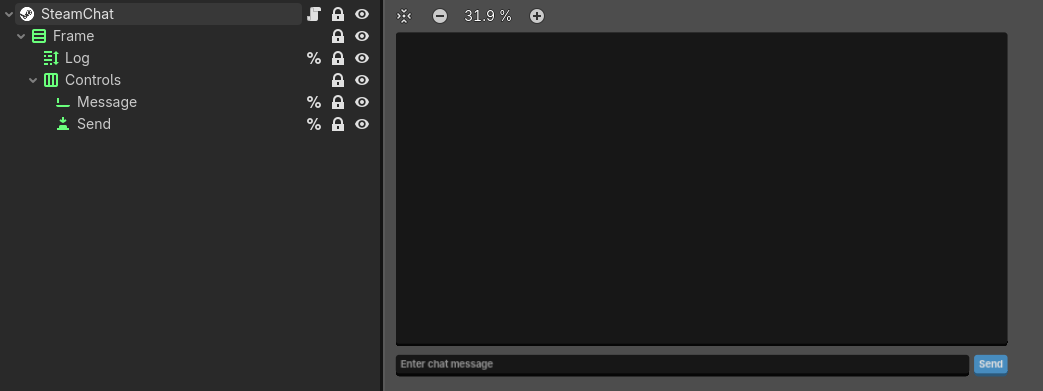
We connect a few simple signals and set up some node shortcuts:
@onready var _log: RichTextLabel = %Log
@onready var _message: LineEdit = %Message
@onready var _send: Button = %Send


func _ready() -> void:
    _message.text_changed.connect(_on_message_text_changed)
    _message.text_submitted.connect(_on_message_text_submitted)
    _send.pressed.connect(_on_send_pressed)

    Steam.lobby_chat_update.connect("_on_lobby_chat_update")
    Steam.lobby_message.connect("_on_lobby_message")
Our Send button will be disabled if there is no text to send. We toggle this with our text_changed and text_submitted functions; also pressing the Send button will do so:
func _on_message_text_changed(new_text: String) -> void:
    _send.disabled = true if new_text.length() == 0 else false


# Ignore the text here because we will just query the LineEdit when it sends
func _on_message_text_submitted(_new_text: String) -> void:
    _on_send_pressed()


func _on_send_pressed() -> void:
    Steam.sendLobbyChatMsg(Steamworks.lobby_id, _message.text)
    _message.clear()
Next we will deal with our two Steam signals: lobby_chat_update and lobby_message.
func _on_lobby_chat_update(lobby_id: int, user_changed_id: int, making_change_id: int, chat_state: Steam.ChatMemberStateChange) -> void:
    if lobby_id != Steamworks.lobby_id:
        return

    var changed_user: String = Steam.getFriendPersonaName(user_changed_id)
    if chat_state == Steam.ChatMemberStateChange.CHAT_MEMBER_STATE_CHANGE_ENTERED:
        _log.add_text("%s joined the lobby\n" % changed_user)
    else:
        _log.add_text("%s left the lobby\n" % changed_user)


func _on_lobby_message(lobby_id: int, sender: int, message: String, chat_type: Steam.ChatEntryType) -> void:
    if lobby_id != Steamworks.lobby_id:
        return

    var sender_name: String = Steam.getFriendPersonaName(sender)
    if chat_type == Steam.ChatEntryType.CHAT_ENTRY_TYPE_CHAT_MSG:
        if message.begins_with("/") and sender == Steam.getLobbyOwner(Steamworks.lobby_id):
            _process_chat_commands(message)
        else:
            _log.add_text("%s: %s\n" % [sender_name, message])
Any time a player leaves or joins the lobby, the lobby_chat_update callback will fire. There are a few different reasons why the player is leaving but we will lump them all under the same message.
When someone sends a message to the lobby, the lobby_message callback fires. For the most part, these will just be people chatting. However, the host can send specific commands here that we process in our _process_chat_commands() function. If you want you could also add some commands for the non-host players too.
func _process_chat_commands(message: String) -> void:
    print("Command message: %s" % message)
    var command: PackedStringArray = message.split(" ", false)
    print("Command array: %s" % [command])
    if command.size() == 1:
        printerr("Could not process chat command %s, missing value" % command[0])
    if command[0] == "/kick":
        print("Steam ID / kicked: %s / %s" % [Steamworks.steam_id, command[1]])
        if Steamworks.steam_id == int(command[1]):
            print("You are being kicked")

            # Cause player to leave the lobby and reset the scene back to either the lobby list
            # or the option to host or join a lobby
Currently all we are using this for is kicking players. As you can see like typical console commands, the command starts with a forward slash followed by the command name and then the Steam ID to affect. When the player gets kicked, this will cause them to leave the lobby and reset their interface.
This whole scene can be reused in-game if you are using persistent lobbies so you can have an easy chat system.
Modifying Lobbies
After you are in the lobby, you may want to close it to new members at some point. If so, you will want to make a call to setLobbyJoinable():
Steam.setLobbyJoinable(false)
This may be a new button to add for the host specifically or perhaps a chat command. Additionally, you can still set more lobby data too; either for the whole lobby or individual players like their ready status:
# For the whole lobby
Steam.setLobbyData(Steamworks.lobby_id, key, value)

# For a specific player
Steam.setLobbyMemberData(Steamworks.lobby_id, key, value)
Note that the setLobbyMemberData() function only sets it for the local user so it must be set on their end. Both of these functions will cause a lobby_data_update callback for all lobby members which we cover down in the Lobby Updates section.
Inviting Others
Our Invite button just opens the Steam overlay to an invite dialog panel:
func _on_invite_pressed() -> void:
    Steam.activateGameOverlayInviteDialog(Steamworks.lobby_id)
Since Steam overlay has been wonky since Vulkan was added to Godot, this may not work correctly for you during testing unless you run the game from the Steam client itself. You can read more about this in the Common Issues.
Leaving The Lobby
If the player clicks our Leave button we will very simply call the leaveLobby() function in Steamworks and reset the lobby ID to zero. We should also then change scenes back to our host or join options.
func _on_leave_pressed() -> void:
    Steam.leaveLobby(Steamworks.lobby_id)
    Steamworks.lobby_id = 0
There are other situations where the player might leave like getting disconnected or being kicked by the host which everyone will be notified of by way of a lobby update.
Lobby Updates
If a player leaves the lobby for any reason, or joins, we will get notified by lobby_chat_update which calls our _on_lobby_chat_update() function that we set up at the beginning of the Lobby section:
func _on_lobby_chat_update(lobby_id: int, _changed_id: int, _making_change_id: int, _chat_state: int) -> void:
    if Steamworks.lobby_id != lobby_id:
        return
    _get_lobby_members()


func _on_lobby_data_update(success: int, lobby_id: int, member_id: int) -> void:
    print("Lobby update: %s" % lobby_id)
    if Steamworks.lobby_id != lobby_id:
        return
    _get_lobby_members()
Also if a player's metadata has changed, we will get a lobby_data_update callback which calls our _on_lobby_data_update() function. In both cases, we will just do a full lobby member update via _get_lobby_members() to display the newest status regardless of what specifically happened.
Kicking Players
As mentioned earlier in the Lobby Player section, kicking players is basically a chat command. This command can also be passed by the host as a chat message directly: /kick <user Steam ID>. This will trigger the same process as our Leaving The Lobby section by calling the leaveLobby() function and resetting the lobby ID.
If you keep a persistent lobby during the match, you can keep using this method to boot players.
Starting A Match
Most games will have a ready / not ready toggle which we currently do not cover but will be added later on. This tutorial currently just starts the match when the host hits the Start button. There also is not much code to share here because this process will vary greatly on how your game is actually set up and what networking methods it uses. But in short:
- The host should send some signal, packet, RPC, etc. to all clients to change to the game scene.
- If not using persistent lobbies, all players should wipe the lobby data; specifically the lobby ID.
Up Next
That concludes the lobby tutorial. At this point you may want to check out one of the networking tutorials:
Additional Resources
Video Tutorials
Prefer video tutorials? Feast your eyes and ears!
'Godot Tutorial: GodotSteam Lobby System' by DawnsCrow Games
Related Projects
Extra Tools
Want to skip all of this? GodotSteamKit contains a lobby starter kit that contains all the custom scenes and framework to build off of.
Example Project
Later this year you can see this tutorial in action with more in-depth information by checking out our upcoming free-to-play game Skillet on Codeberg. There you will be able to view of the code used which can serve as a starting point for you to branch out from.