Tutorials - Text Filtering
This tutorial covers adding text filtering in your game; specificially lobby chat, though it can be applied to things like usernames.
Relevant GodotSteam classes and functions
Note
You may want to double-check our Initialization tutorial to set up initialization and callbacks functionality if you haven't done so already.
Preparations
Since we are focusing on lobby chat, this tutorial will piggyback off our lobby tutorial and we will be making a slight modification to the message callback from that later on in this tutorial. First we will need to enable chat filtering in the Steam settings so we can properly test things are working.
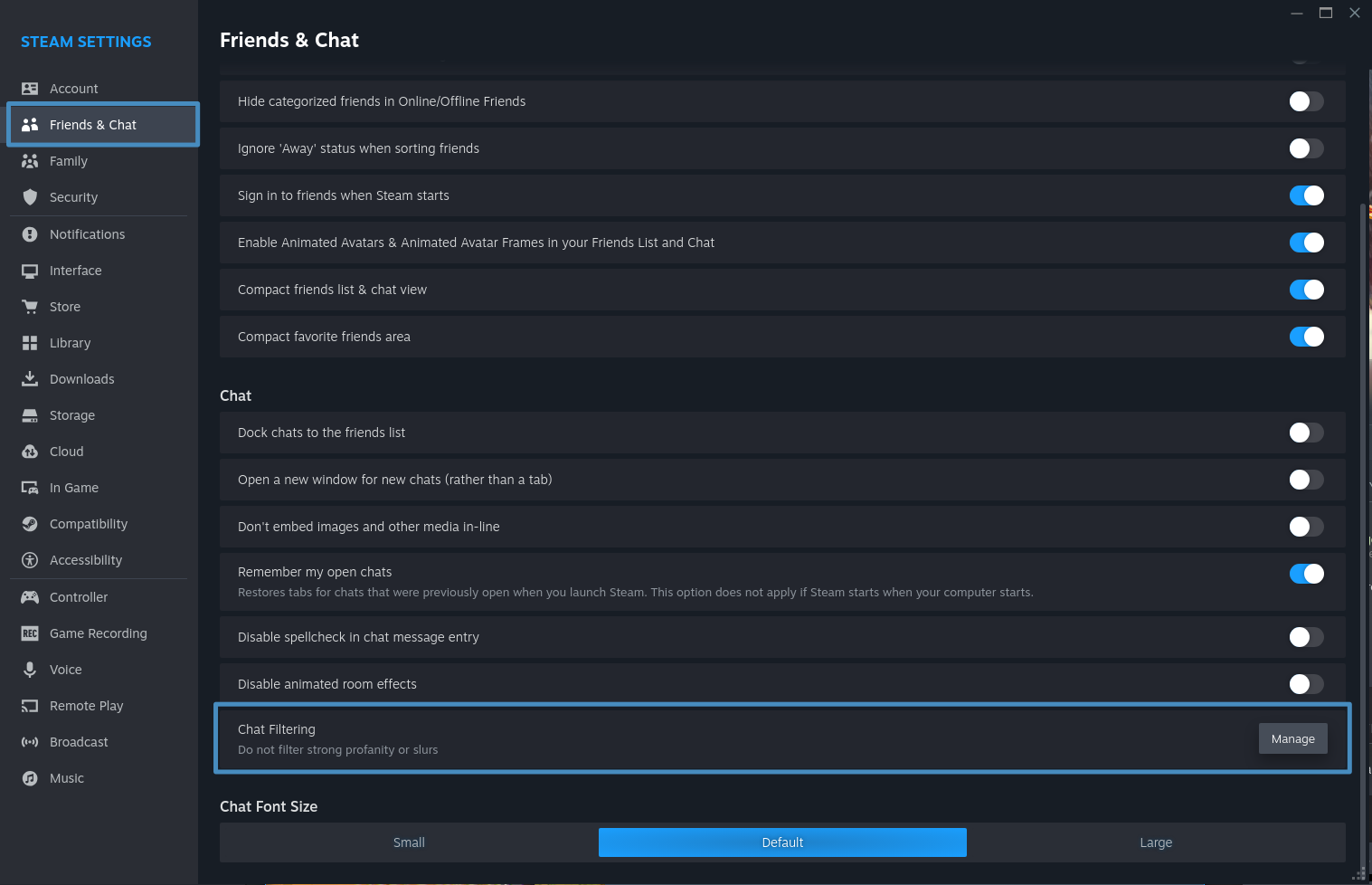
Open your Steam client settings and navigate down to Friends & Chat then scroll down on the right until you see Chat Filtering and pressed the Manage button. Alternatively you can also just open the Community Content Preferences by URL here.
Once the account preferences loads, scroll down to the Community Content Preferences section and you should see Chat Filtering. For testing we will be changing the Language Preferences and User Group Preferences.
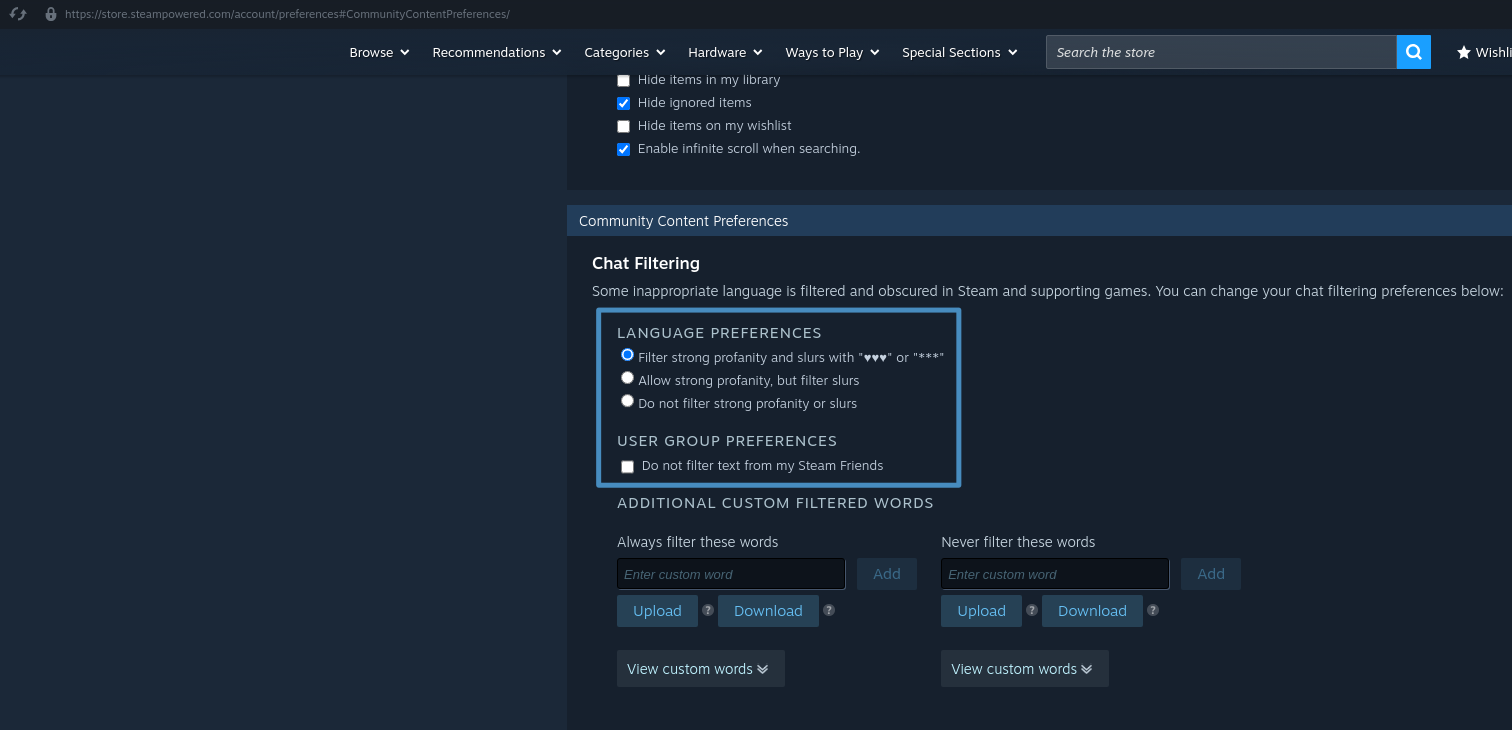
Here we will set Language Preferences to Filter strong profanity and slurs with "♥♥♥" or "***" and untick Do not filter text from my Steam Friends in the User Group Preferences. This will make sure that if you are testing with friends, the proper filtering will be used. After we are done testing, you can switch these back to whatever you had previously.
Now we should be ready to begin.
Initializing Filters
Initialing the filters is very simple. You can place the function call pretty much anywhere but I would suggest adding it to your _on_lobby_joined callback if you are only using it for lobby chat filtering. Otherwise, you could add it to your Steam initialization process if you want to filter other texts than lobby chat.
Steam.initFilterText()
Steam.initFilterText(0)
Currently the default is 0 and currently no other filter options can be passed here yet. In GodotSteam 4.20, this parameter was removed since it is unnecessary but may be added in future versions if Valve enables it. It will need to be added in GodotSteam 4.19.1 or older.
Now that we have initialized text filtering, we can actual clean up our texts!
Filtering Text
We have our filters set and filtering initialized so we will add one tiny bit of code to our lobby messages. Again, borrowing from our lobby tutorial, we will add the filterText() function in before displaying the incoming chat message:
func _on_lobby_message(lobby: int, user: int, chat_message: String, chat_type: Steam.ChatEntryType) -> void:
    # Make sure we are getting messages for the right lobby
    if lobby != Steamworks.lobby_id:
        return

    # Make sure this is an actual chat message, filter it, then add it to our chat log stack
    if chat_type == Steam.ChatEntryType.CHAT_ENTRY_TYPE_CHAT_MSG:
        var clean_message: String = Steam.filterText(Steam.TEXT_FILTERING_CONTEXT_CHAT, user, chat_message)
        chat_log.append_text("%s\n" % clean_message)
You see above we are using the TEXT_FILTERING_CONTEXT_CHAT filtering context but there are a handful of others you can use. The only other one I think would be useful is TEXT_FILTERING_CONTEXT_NAME which you can use to filter player or items names.
A quick note: this will not filter text you send for yourself but other users, if their filtering is set correctly, will see *** instead of any blocked words. Unfortunately, you will need to test this with another person or second Steam account to be sure it is working properly and even then it only works if the users have the appropriate settings enabled.
Encoding Breakage
In GodotSteam 4.19.1 and older, the filterText() function will break any special encoding, emojis, etc. so they will not render correctly. This is fixed in GodotSteam 4.20 and newer.
And that is it for our text filtering tutorial!
Additional Resources
Example Project
You can view this tutorial in action with more in-depth information by checking out our upcoming free-to-play game Skillet on Codeberg. This link will take you to the direct file where this tutorial comes from but feel free to explore the rest of the project too!