Tutorials - Voice
This tutorial covers adding Steam Voice chat to your game instead of just typing away mid-game. This example is based partially on this Github repo for networked voice chat in Godot and Valve's SpaceWar example. There are additional ideas, details, and such from cool people Punny and ynot01.
Relevant GodotSteam classes and functions
Note
You may want to double-check our Initialization tutorial to set up initialization and callbacks functionality if you haven't done so already.
Preparations
First we will set up a bunch of variables and a constant that will get used later on:
const SAMPLE_RATE: int = 48000

var current_sample_rate: int = SAMPLE_RATE
var voice_playback: AudioStreamGeneratorPlayback = null
In our _ready() function we will add a call to setup_stream() which will create our AudioStreamPlayer used to hearing the voice data. The setup_stream() function should look something like this:
func setup_stream() -> void:
    # Optionally we can get the sample rate from Steam
    # current_sample_rate = Steam.getVoiceOptimalSampleRate()

    var voice_stream_player := AudioStreamPlayer.new()
    add_child(voice_stream_player)
    voice_stream_player.stream = AudioStreamGenerator.new()
    voice_stream_player.stream.mix_rate = current_sample_rate
    voice_stream_player.play()
    voice_playback = voice_stream_player.get_stream_playback()
You can also use Steam's assumed optimized sample rate by calling getVoiceOptimalSampleRate() and placing it before creating our AudioStreamPlayer. This can reduce CPU usage, but at the cost of some audio quality, so you could place a toggle in your game's settings / options to use it upon request.
Recording Voice
So how do we actually get our voice data to Steam? Like most games, you will probably want to offer both open mic and press-to-talk options. For our example we will create two buttons, one for each option. Both buttons will call the same record_voice() function too:
@onready var press_to_talk: Button = %PressToTalk
@onready var toggle_open_mic: Button = %ToggleOpenMic


# Add signals for those new buttons
func _ready() -> void:
    ...
    press_to_talk.button_down.connect(record_voice.bind(true))
    press_to_talk.button_up.connect(record_voice.bind(false))
    toggle_open_mic.toggled.connect(record_voice)
We could also implement this behavior as a hotkey instead. Just add a new variable to keep track of the open mic status called is_open_mic and then add two new input actions: voice_toggle and voice_talk. Then, when they are pressed (or released), we can call our same record_voice() function.
var is_open_mic: bool = false

func _input(event: InputEvent) -> void:
    if event.is_action_pressed("voice_toggle"):
        is_open_mic = not is_open_mic
        record_voice(is_open_mic)
    if event.is_action_pressed("voice_talk"):
        record_voice(true)
    if event.is_action_released("voice_talk"):
        record_voice(false)
Finally we have our actual record_voice() function which just swaps between startVoiceRecording() and stopVoiceRecording(). We will also called setInGameVoiceSpeaking() to suppress any sounds or such coming from the Steam client.
func record_voice(is_recording: bool) -> void:
    # If talking, suppress all other audio or voice comms from the Steam UI
    Steam.setInGameVoiceSpeaking(steam_id, is_recording)

    if is_recording:
        Steam.startVoiceRecording()
    else:
        Steam.stopVoiceRecording()
Now time to get the voice data we just sent.
Getting Voice Data
In our _process() function we will add the check_for_voice() function call:
func _process(_delta: float) -> void:
    check_for_voice()
This function basically just looks to see if there is voice data from Steam available. If so, it will grab it and send it off to be processed.
Using RPCs, we can just call our process_voice_data() function and pass the voice buffer over.
func check_for_voice() -> void:
    var available_voice: Dictionary = Steam.getAvailableVoice()

    if available_voice['result'] == Steam.VoiceResult.VOICE_RESULT_OK and available_voice['size'] > 0:
        var voice_data: Dictionary = Steam.getVoice()

        if voice_data['result'] == Steam.VOICE_RESULT_OK and voice_data['size'] > 0:
            # Here we pass the voice data off to the network
            process_voice_data.rpc(voice_data['buffer'])
Sending the data based on our Networking Message tutorial.
func check_for_voice() -> void:
    var available_voice: Dictionary = Steam.getAvailableVoice()

    if available_voice['result'] == Steam.VoiceResult.VOICE_RESULT_OK and available_voice['size'] > 0:
        var voice_data: Dictionary = Steam.getVoice()

        if voice_data['result'] == Steam.VOICE_RESULT_OK and voice_data['size'] > 0:
            # Here we pass the voice data off to the network
            Networking.send_message(0, {"voice": voice_data['result']})
Best used in your game's settings / options menu to test the player's voice audio.
func check_for_voice() -> void:
    var available_voice: Dictionary = Steam.getAvailableVoice()

    if available_voice['result'] == Steam.VoiceResult.VOICE_RESULT_OK and available_voice['size'] > 0:
        var voice_data: Dictionary = Steam.getVoice()

        if voice_data['result'] == Steam.VoiceResult.VOICE_RESULT_OK and voice_data['size'] > 0:
            # Here we directly pass the voice data to our processing function
            process_voice_data(voice_data['buffer'])
GodotSteam Version Differences
The above code requires some changes based on which version of GodotSteam you are using. Versions 4.16 to 4.18.1 removed getAvailableVoice() because its main functionality was merged into getVoice(). However, it was restored to the GodotSteam API in version 4.19. So for versions without getAvailableVoice(), or if you don't need its additional functionality, we just skip down to getVoice() and tweak one key from size to written, making it simply:
func check_for_voice() -> void:
    var voice_data: Dictionary = Steam.getVoice()

    if voice_data['result'] == Steam.VoiceResult.VOICE_RESULT_OK and voice_data['written']:
        # Pass the voice data along
Now time to process the data so we can actually hear it.
Processing Voice Data
Regardless of how we sent it or if we are just testing with loopback, this function will process the voice buffer and play it back in our voice_playback stream.
# If using MultiplayerPeer, we will add this line
# @rpc("any_peer", "call_remote", "unreliable")
func process_voice_data(voice_data: PackedByteArray) -> void:
    var decompressed_voice: Dictionary = Steam.decompressVoice(voice_data, current_sample_rate)

    if decompressed_voice['result'] == Steam.VoiceResult.VOICE_RESULT_OK and decompressed_voice['size'] > 0:
        var frames_to_push: PackedVector2Array = PackedVector2Array()
        frames_to_push.resize(decompressed_voice['size'] / 2)

        for i in range(0, decompressed_voice['size'], 2):
            var sample_int: int = decompressed_voice['uncompressed'].decode_s16(i)
            var amplitude: float = float(sample_int) / 32768.0
            frames_to_push[i / 2] = Vector2(amplitude,  amplitude)

        if voice_playback.get_frames_available() >= frames_to_push.size():
            voice_playback.push_buffer(frames_to_push)
        elif voice_playback.get_frames_available() > 0:
            voice_playback.push_buffer(frames_to_push.slice(0, voice_playback.get_frames_available()))
As noted, if you are using MultiplayerPeer to send your voice data, just uncomment that line above the function to use RPCs.
Troubleshooting
Choppy Voice
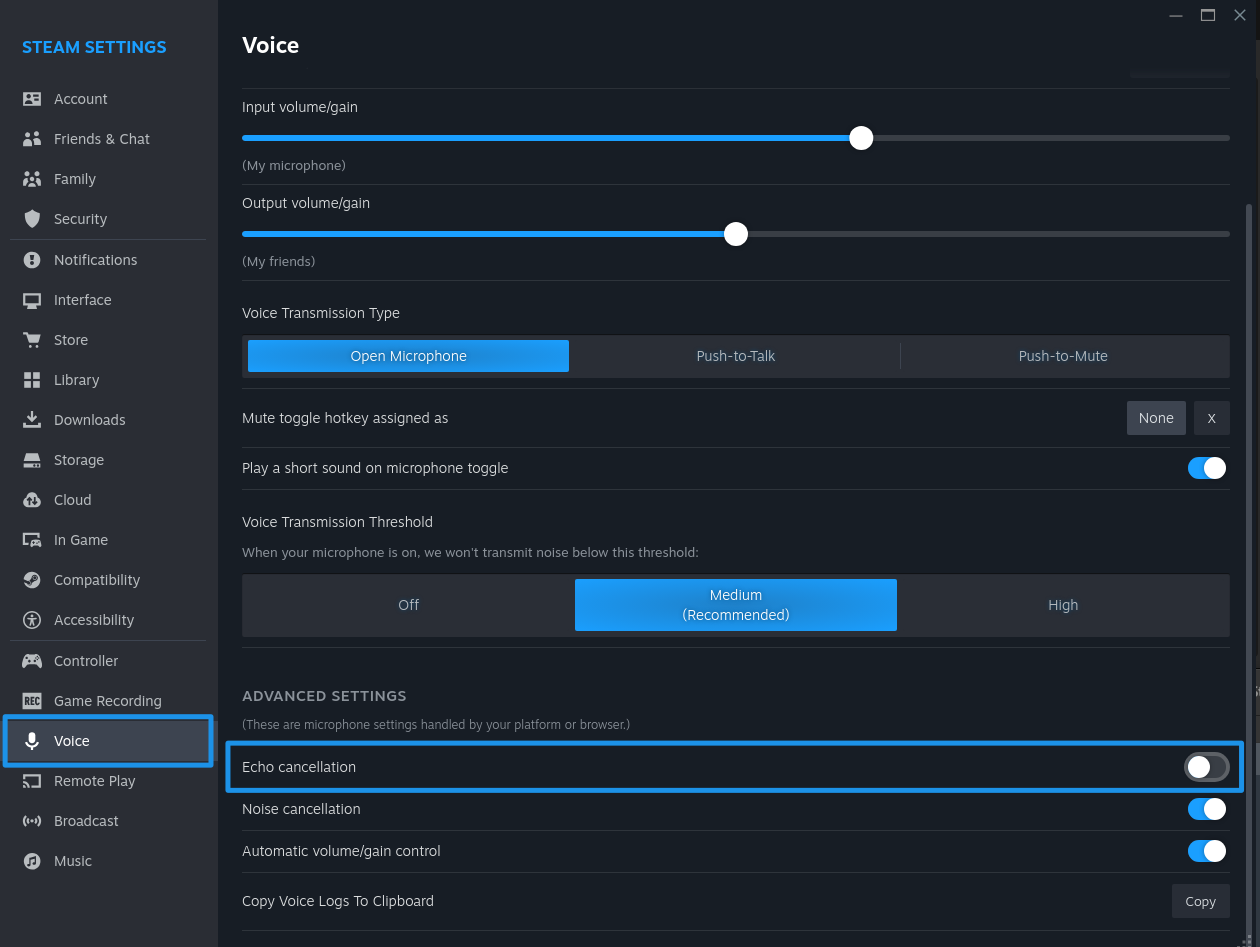
Though the newer version of this tutorial should fix the choppy audio issue, I was still getting choppy voice when testing in the Steam client's settings. For me, it seemed to be caused by Steam's echo cancellation setting; I just had to turn this off to get smooth audio going. You can find this in: Settings > Voice > Advanced Settings > Echo Cancellation
Additional Resources
Video Tutorials
Prefer video tutorials? Feast your eyes and ears!
'Proximity Voice Chat in Godot using Steam Lobbies' _by Rembot Games
Related Projects
Extra Tools
Want to skip all of this? GodotSteamKit contains a voice custom node that contains all the necessary functionality to drop into your game.
Example Project
Later this year you can see this tutorial in action with more in-depth information by checking out our upcoming free-to-play game Skillet on Codeberg. There you will be able to view of the code used which can serve as a starting point for you to branch out from.